
A verified business email is an address that the company's own mail server has confirmed it will accept, checked shortly before you write to it. To get one you find the address (on the site, its social profiles or by pattern), then ask the domain's mail server whether that mailbox exists, and you only send to the ones it says yes to.
That second step is the one most people skip, and it decides whether your cold email lands or bounces. If you sell web design, SEO or marketing to small businesses, your whole pipeline runs through the inbox. A list full of dead addresses wastes a morning, and worse, it teaches inbox providers that your domain sends mail nobody asked for.
Why does an unchecked email hurt more than one bounce?
A bounce looks like a small thing. You sent to an address, it did not exist, you got an error back, and you move on to the next name.
The trouble is what the receiving side learns from it. Gmail, Outlook and the rest watch how your domain behaves: how many messages bounce, how many get marked as spam, how many get opened and answered. A sender whose mail keeps hitting addresses that do not exist looks like someone mailing a bought or scraped list, because that is usually what it is. Your next email, the one going to a real owner who might have hired you, is more likely to go to spam.
There is also a cost you feel directly. Every dead address on your list is a business you think you have contacted. You wait for replies that cannot come, you count it in your follow-up plan, and you draw the wrong conclusion about your pitch.
Here is the difference:
| Found address | Verified address | |
|---|---|---|
| Where it came from | A page, a pattern or a database | Same, then checked with the mail server |
| What you know | It was written down somewhere once | The server accepts mail for it now |
| Risk when you send | Bounce, or a dead inbox nobody reads | Low: it can still be closed later |
| Effect on your domain | Bounces count against you | Little to none |
| Effect on your numbers | Reply rate looks worse than it is | Reply rate reflects your pitch |
New businesses are where this matters most. A company that went live last week may have set up its domain mail days ago, or not at all yet. The address on its contact page might be a placeholder from the website template. Checking is how you find out which.
Where can you find a business's email address?
There are six common places to look. None of them gives you a verified address on its own. Each one gives you a candidate to check.
On the business's own website
Start with the contact page, then the footer, then the privacy policy and terms pages, which often name a contact address for data requests. Sites in Germany and Austria usually carry an Impressum page with an email on it. Online stores often list a support address on their shipping or returns page.
What it takes: two or three minutes a site. Limits: many small sites only have a form, and some write the address as an image or as "name [at] domain" to keep bots away. On a brand new site the address can be the template's demo address that nobody changed.
In the domain's registration record
You can look up who registered a domain through WHOIS or its newer form, RDAP. Years ago this was a reliable source of owner emails. Since 2018 most registrars hide the owner's personal details by default, so what you usually get now is a privacy service address or a web form.
What it takes: a free lookup. Limits: rarely gives you a usable email today, but it does tell you when the domain was registered, which is handy for spotting new businesses.
On the business's social profiles
Instagram business and creator profiles can show an Email button. Facebook pages have an About section that often lists one. LinkedIn company pages link to the website, and the founder's own profile sometimes lists a contact address. Link-in-bio pages are worth a look too.
What it takes: a few minutes, and it often turns up the owner's personal address rather than a shared inbox. Limits: profiles go stale, and some list a personal Gmail address instead of one on the company's domain.
By guessing the pattern
If you know the owner's name, the address is often one of a handful of shapes: first@, first.last@, firstlast@, or first initial plus last name. On a one person business, hello@ and info@ are common too.
What it takes: seconds. Limits: a guess is only a guess. This is exactly the source that produces bounces when people skip checking.
With a search engine
Search for the domain in quotes with an @ sign, for example "@examplestudio.com". You will sometimes find the address on a directory listing, a press mention, a podcast page or an old event page.
What it takes: a minute. Limits: what you find may be years old, and new businesses rarely have any of these mentions yet.
With an email finder tool
Tools such as Hunter look up addresses they have seen published on the web and guess the pattern for a domain. Most offer a small free allowance.
What it takes: a sign-up and a few clicks. Limits: these tools are built from what was published in the past, so a business that launched this week is usually not in them yet. Some include a verification step; check what it means before you trust the label.
How do you check an email exists before you send to it?
You can verify an address by hand in three steps. The first two are free and work from any computer. The third talks to the mail server directly.
Step 1: Is the address written correctly?
Look for the boring mistakes first: a missing letter in the domain, a trailing dot, a space, .con instead of .com. Copying from a page that wrote the address as "name [at] domain [dot] com" causes a lot of these.
Step 2: Does the domain accept mail at all?
Every domain that receives email publishes an MX record, which says which server handles its mail. Look it up from a terminal:
- On Windows:
nslookup -type=mx examplestudio.com - On Mac or Linux:
dig mx examplestudio.com
If there is no MX record, the domain almost certainly is not set up to receive email, so treat every address on it as unverified. This is common on brand new sites where the owner bought the domain and built the website but has not set up mail yet. Note the business and check again in a week.
The MX record also tells you who hosts the mail. Records such as aspmx.l.google.com or smtp.google.com mean Google Workspace; records ending in mail.protection.outlook.com mean Microsoft 365. That matters for the next step, because some large providers answer yes to every address at that stage.
Step 3: Ask the mail server about the mailbox
This is the real verification. Email is delivered over SMTP, and an SMTP conversation has a point where the sender names the recipient. The server answers before any message is sent. So you connect to the server from the MX record, introduce yourself, give a sender address, name the recipient, read the reply, and hang up.
From a machine that is allowed to use port 25, the conversation looks like this: telnet aspmx.l.google.com 25 (the server from the MX record), then HELO yourdomain.com, then MAIL FROM:<you@yourdomain.com>, then RCPT TO:<ada@examplestudio.com>. Read the reply to that last line, then type QUIT. No message is ever sent.
The replies you care about:
| Server reply | What it means | What to do |
|---|---|---|
| 250 to the recipient | The mailbox exists and accepts mail | Send |
| 550 or 5.1.1 | No such user | Drop it; try another address |
| 450 or other 4xx | Try later (often greylisting) | Check again in an hour |
| 250 to a made-up address too | Catch-all: the server says yes to everything | You cannot tell; treat as unverified |
| No answer, or connection refused | The server will not talk to you | You cannot tell; treat as unverified |
The catch-all test is worth doing every time. After you check the real address, check one that cannot exist, such as zq7x91test@examplestudio.com. If the server accepts that too, its yes means nothing.
The method has two limits. First, many home internet providers block outgoing connections on port 25, which this check needs, so you may have to run it from a rented server or use a verification tool that does it for you. Second, some large mail providers answer yes at this stage and refuse the message later. Verification makes bounces rare, not impossible.
If you check addresses in bulk, keep the pace slow. A server that gets dozens of these checks a minute from one place will start refusing you, and that can affect the mail you send from the same address.
Should you write to info@ or to the owner?
It depends on the size of the business, and for most freelancers the answer is kinder to info@ than you might expect.
On a business run by one or two people, info@, hello@ and contact@ almost always land in the owner's own inbox. There is no receptionist. A verified info@ on a small new business is often as good as the owner's name.
On a bigger company, a shared inbox is read by whoever is on support that day, and a pitch for SEO or a redesign gets forwarded, or doesn't. There, a named person is worth the extra digging, and you want the person who owns the website: the founder, the marketing lead, or the head of ecommerce.
A simple rule that works:
- Under five people: a verified role address is fine. Use the owner's name in your greeting if the About page gives it.
- Five to fifty people: look for a named person in marketing or the founder. Fall back to the role address.
- Bigger than that: find the named person, or skip the business. Your pitch will not survive a support queue.
Whatever you pick, verify it. A named address you guessed is worse than a role address the server confirmed.
What do you point out once you know the address works?
A working address gets your email delivered. What gets it answered is saying something specific about the business's own website. The easiest specifics to find are the homepage gaps you can see in a few minutes, and each one has a cost the owner will understand.
| Gap on the homepage | What it costs the business |
|---|---|
| No meta description | Google writes its own snippet from random page text, which usually reads worse and earns fewer clicks |
| No structured data | Search engines get less help understanding what the business is and sells |
| No social preview image | Links shared on WhatsApp, LinkedIn or Facebook show up blank or with a random image |
| No favicon | The browser tab and some search results show a generic icon, which looks unfinished |
| Images with no alt text | Screen readers skip them and image search cannot read them |
| Old copyright year in the footer | Visitors wonder if the business is still open |
| Pages loading over plain http | Browsers mark the site "Not secure" next to the address |
| Slow to load on mobile | Visitors on phones give up before the page appears |
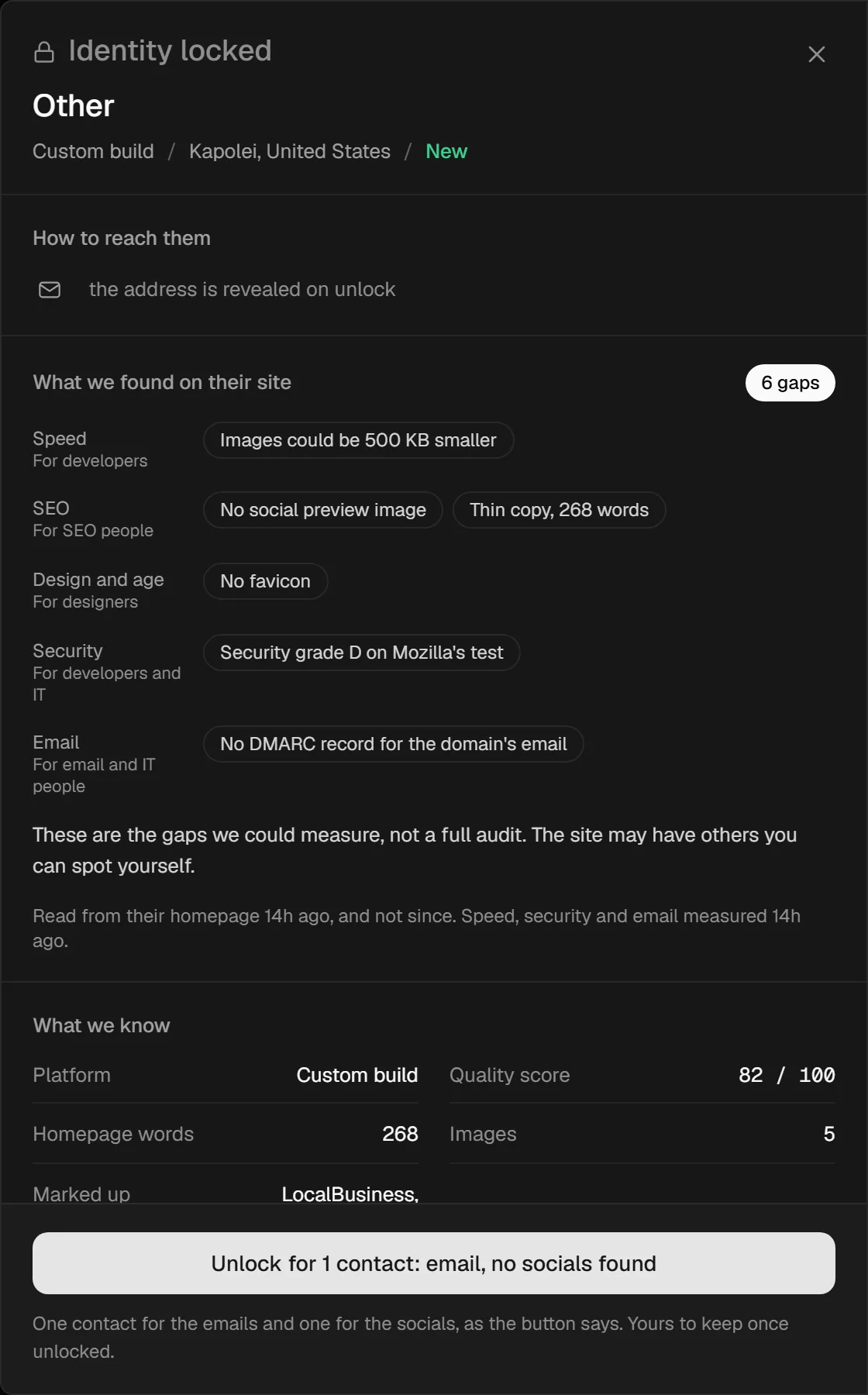
Pick one gap, two at most, that ties to what you sell. Then keep the email short. For example:
Subject: your link previews on WhatsApp
Hi Ada,
I saw Example Studio went live this month. Congratulations. One thing I noticed: when someone shares your homepage on WhatsApp or LinkedIn, it shows up with no image, because the page has no social preview image set.
It's about an hour's work to fix, and while I'm in there I can add a short description for Google too, since that's missing as well.
Want me to send a quick mock-up of how the shared link would look?
Tunde
Leave out attachments and your portfolio link in the first message, and end on one question they can answer in a word. If you need more templates, our cold email templates for web design post has seven.
Then plan the follow-ups before you send. Two or three, spaced a few days apart, each with something new to say. The follow-up guide covers what each one should contain.
How do you keep a new sending domain out of spam?
Verified addresses stop bounces. These habits cover the rest of what lands you in spam:
- Set up SPF, DKIM and DMARC. These are records you add to your domain that prove your mail is really from you. Gmail and Yahoo began requiring them from bulk senders in 2024, and they help a small sender too.
- Think about a second domain for cold email. Many freelancers send outreach from a domain close to their main one, so a bad week does not touch the inbox their clients write to.
- Start slow. A new domain that sends a hundred cold emails on its first day looks like a spammer. Send a handful a day and build up over a few weeks.
- Write like a person. Use plain text, skip tracking images if you can manage without them, and keep it to one link.
- Make it easy to say no. A line such as "If this isn't useful, just tell me and I won't write again" costs nothing and keeps people from pressing the spam button.
- Check the rules for where you are sending. Cold email to businesses is treated differently from country to country. Know the basics for the countries on your list.
Is there a faster way than checking every address yourself?
Yes, though not from a list built last year. The by-hand method above works, and it is worth doing a few times so you know what a verification result means. But it is slow: finding the address, checking the MX record and asking the server takes several minutes per business when it goes well, and longer when the address is hard to find.
This is the work Vetted Leads does for you. It reads the public certificate logs to spot websites the day they go live, checks each one is a real business, lists the homepage gaps from the table above, and checks every email with the business's own mail server before the lead reaches the feed. If the server says the mailbox does not exist, or will not say either way, the email is left out. On 23 November 2026 we checked 627,280 websites. As of the morning of 24 November 2026, 1,093 new businesses had reached the feed in the previous 24 hours.
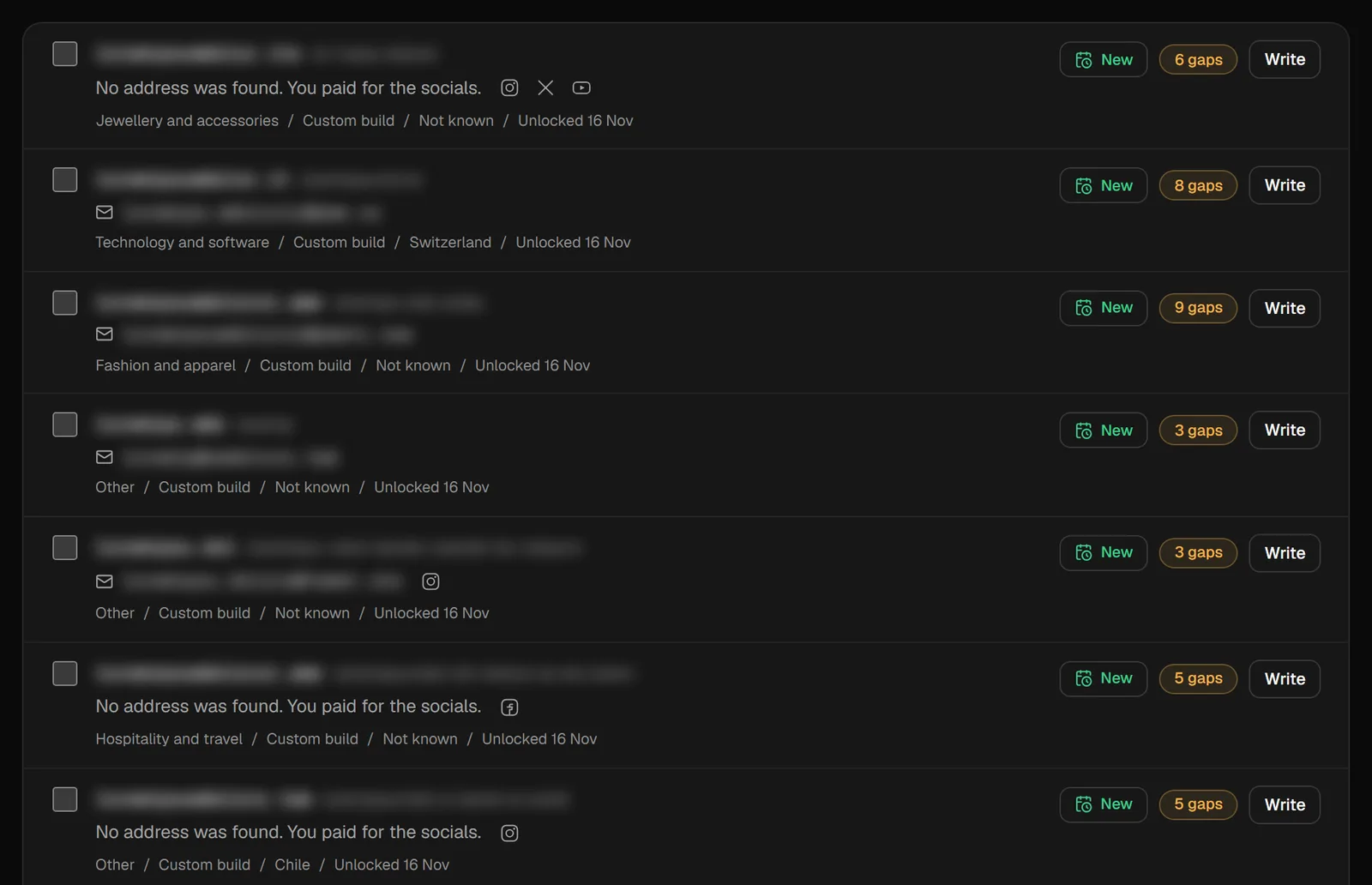
You can try it with 3 free contacts and no card, and see the newest 50 leads each day for free.
What can you do with your next five leads?
Take the next five businesses you planned to email. For each one, look up the MX record, run the catch-all test, and drop anything the server will not vouch for. Pick one homepage gap per business and write a four line email about it.
If you would rather start from businesses that launched this week with the email already checked, try Vetted Leads free with your 3 contacts and see how the replies compare.
Questions people ask
What is a verified business email?
It is an address that the business's own mail server has said it will accept, checked shortly before you send. Finding an address on a page, or guessing it from a pattern, does not make it verified. Only the receiving server can say whether the mailbox exists.
Can you verify an email address without sending an email?
Yes. You look up the domain's mail server (its MX record), connect to it, and start the steps a real delivery would take, up to the point where you name the recipient. The server says yes or no to the mailbox, and you disconnect before any message is sent. Many home internet connections block the port this needs, so most people use a verification tool for it.
Why does a verified email still bounce sometimes?
A few reasons. The mailbox was closed after you checked it, the server answered yes to everything (a catch-all), or the server accepted the address at first and refused the message later. Checking close to the day you send keeps these rare, and they do not go away completely.
Is info@ worth emailing for cold outreach?
On a small business, often yes. When one or two people run the company, info@ and hello@ usually land in the owner's own inbox. On a bigger company a shared inbox is read by whoever is on duty that day, so a named person is better if you can find and verify one.
Are the emails on Vetted Leads verified?
Yes. Every email is checked with the business's own mail server before the lead reaches the feed, and an address the server rejects or will not answer for is left out. You can try it with 3 free contacts and no card at https://vettedleads.app.